WhatsApp Opt-in: 7 Strategies to Grow Subscribers in 2026
Kai Viertel, Co-Founder & CMO
Subscribers do not arrive on their own. This guide shows 7 GDPR-compliant opt-in strategies, from QR codes at the point of sale to email migration, plus 5 touchpoints most small businesses miss: subscribe buttons, the email signature, guest WiFi, the Google Business Profile and custom trigger words on the product. With a 90-day plan and a checklist to download.
TL;DR
WhatsApp newsletters only work with explicit opt-in. GDPR requires provable consent. This article covers 7 field-tested strategies: a website widget, QR codes at the point of sale, social media links, email migration, checkout integration, exclusive content, and events. At the end you get a 90-day plan that a typical small business can use to realistically build a list of 500 subscribers. On top of those come 5 touchpoints most small businesses miss: subscribe buttons on your site and landing pages, the email signature, guest WiFi, the Google Business Profile and custom trigger words right on the product. A checklist is available to download.
Why opt-in is the foundation for everything
Picture two companies. Company A buys a list of 5,000 contacts and sends its first WhatsApp newsletter. The result: a 23% delivery rate, mass blocking, and WhatsApp bans the number after 48 hours. Company B collects 800 subscribers over six months. Every single one actively opted in. The result: a 94% delivery rate, a 61% open rate, and a 14% click rate.
The difference isn't the message. It's the list.
An opt-in is more than a legal requirement. It's a quality filter. Someone who actively signs up for your newsletter wants to hear from you. Someone on a purchased list often doesn't even know your company exists.
WhatsApp makes this difference starker than any other channel. That's because WhatsApp rates your sender number based on how recipients react. Lots of blocks? Your quality rating drops. Below a certain threshold? Meta throttles your sending capacity or bans the number entirely.
Quality beats quantity. Every time. 500 real subscribers are worth more than 5,000 dead entries.
The legal basis: what GDPR requires
GDPR isn't an obstacle. It's your shield against complaints, cease-and-desist letters, and reputational damage. Here are the key rules in 60 seconds.
Consent must be active. No pre-ticked box. No "by using this site you agree". The user has to take a deliberate action. For example, submitting a form, scanning a QR code and confirming, or sending a message to your WhatsApp number.
Double opt-in is recommended, but not legally required. In practice, privacy lawyers almost always advise it. The reason: if a dispute arises, you can prove consent without any gaps. A confirmation message on WhatsApp is enough for that.
Documentation is mandatory. You need to be able to prove when and how consent was given. A timestamp, the channel, the IP address (for web forms), and the exact wording of the consent statement all belong in your records.
Unsubscribing must be possible at any time. Every newsletter needs an unsubscribe note. On WhatsApp, a simple line like "Reply STOP to unsubscribe" is enough. The opt-out has to take effect immediately.
The good news: none of this is complicated. Capture consent cleanly, document it, and make opting out effortless. The rest takes care of itself. Which WhatsApp rules apply before your first send, from the template requirement to the 24-hour window and Meta's own fees, is summed up in our WhatsApp essentials fact sheet.
7 opt-in strategies to grow your list
Each strategy works on its own. Combined, they reach full effect. Start with two or three. Scale what works.
Strategy 1: The newsletter widget on your website
The easiest place to start. A small widget on your website that signs visitors up for your WhatsApp newsletter directly. No app switching, no complicated form. Two clicks and the visitor is a subscriber.
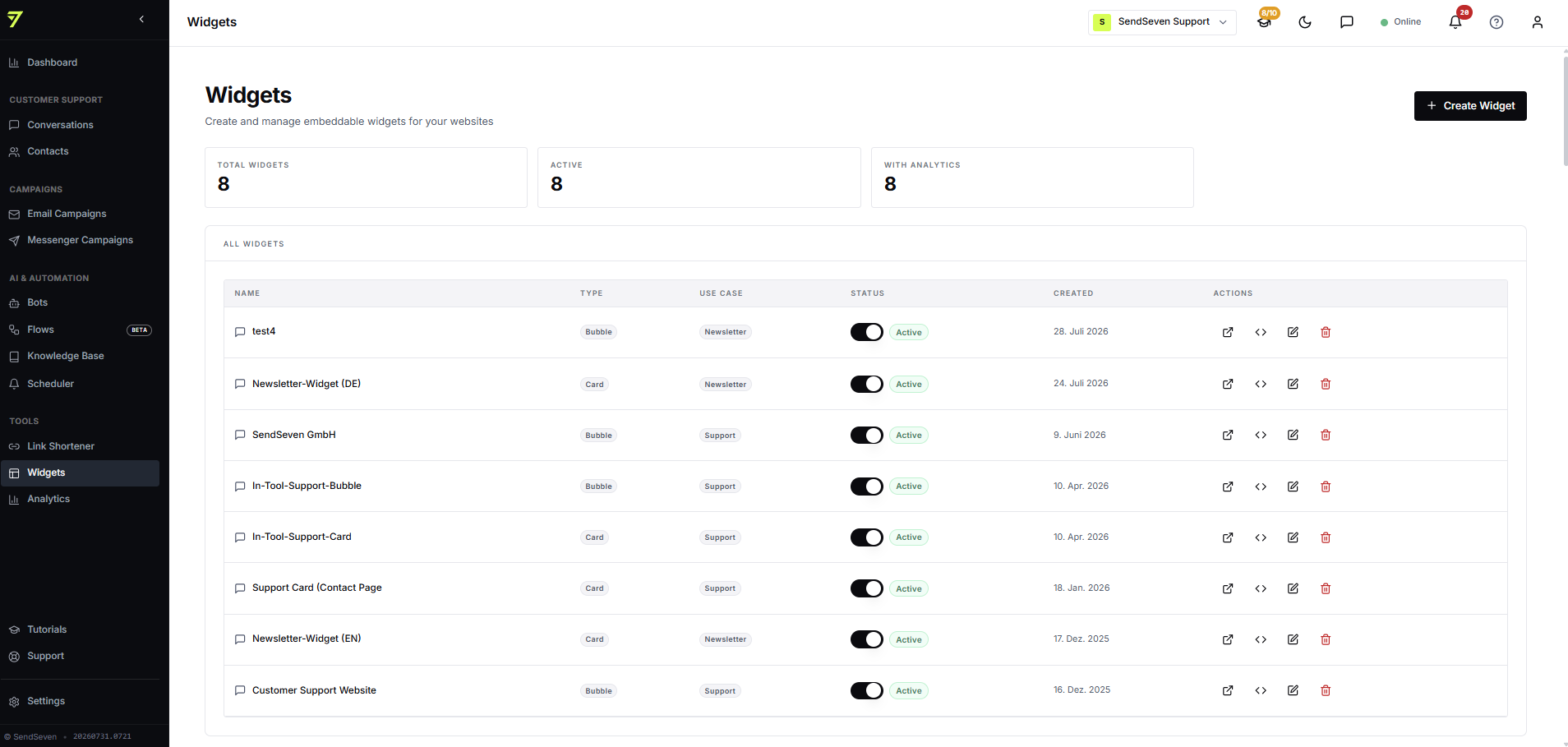
Place the widget where attention is highest. The best positions: below a blog article, on the thank-you page after an order, as a slide-in after 30 seconds on the page, or directly on the homepage above the fold.
A tip from the field: wording like "Exclusive deals on WhatsApp" converts far better than a generic "Subscribe to our newsletter". Tell the visitor what they get. Not what to do.
The whole setup takes under 10 minutes. Our newsletter widget guide walks through every step.
Set up the newsletter widget in 5 minutes
With the SendSeven newsletter widget, you collect opt-ins directly on your website. GDPR-compliant, with a double opt-in option.
Set up the widget →Strategy 2: QR code at the point of sale
A bakery showed how it's done. A QR code on the receipt. Underneath, the line: "10% off your next order. Scan and claim it on WhatsApp." After three months: 340 subscribers. Without spending a cent on advertising.
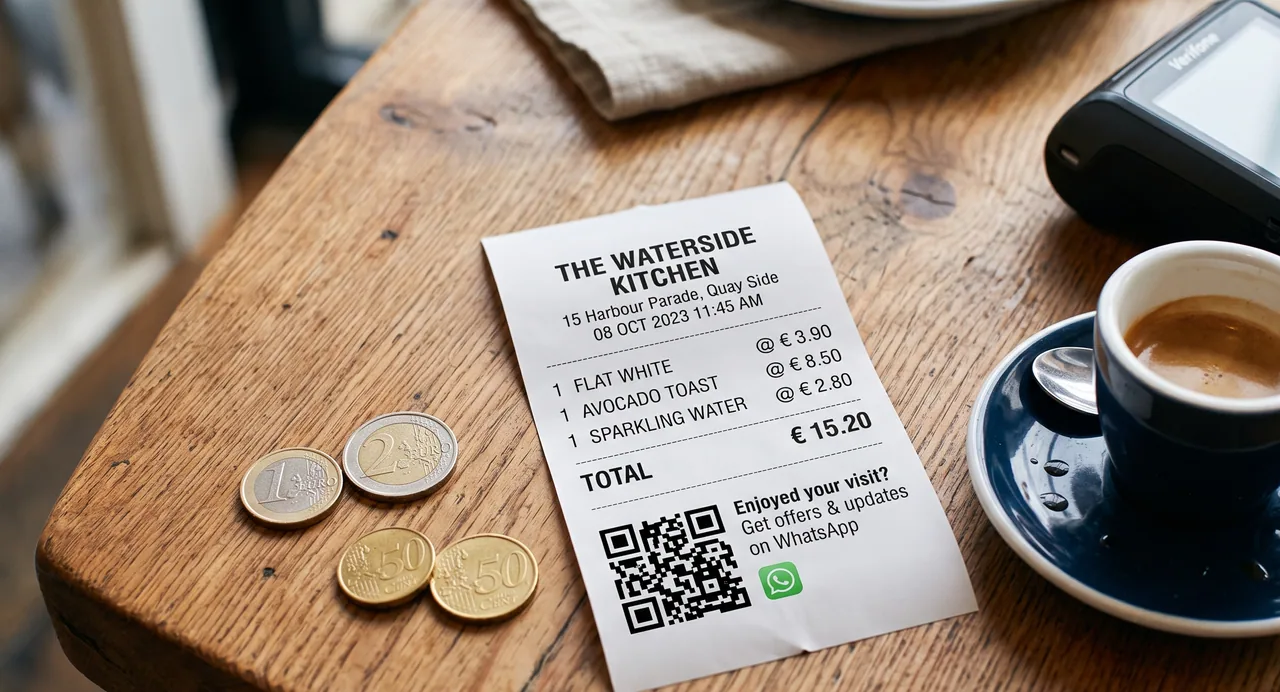
QR codes work anywhere customers already come into contact with your business. Receipt, packaging, business card, shop window, menu. The advantage: the customer is physically in your store. They already know you. The barrier is minimal.
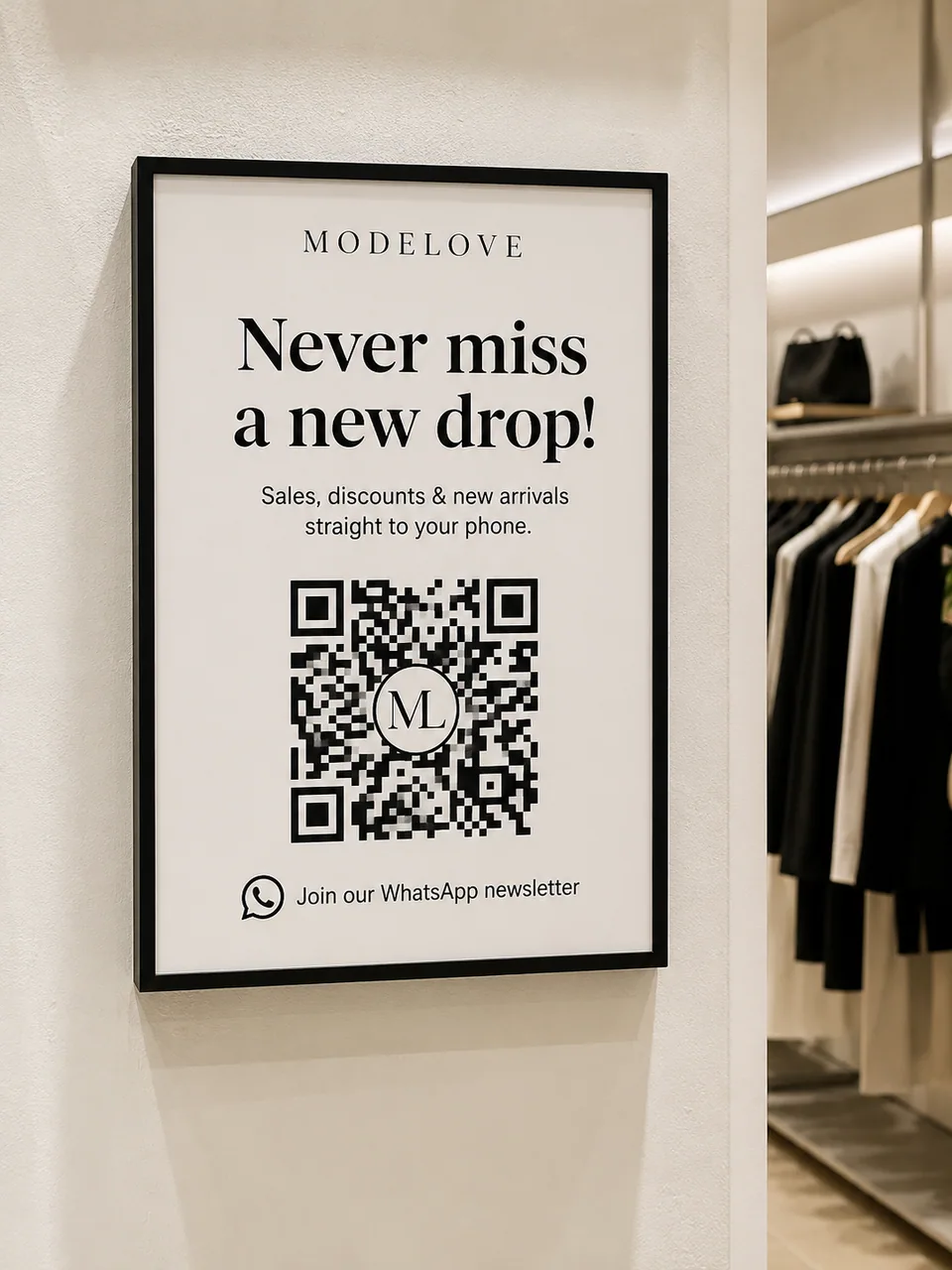
Create the QR code for free with our WhatsApp Link Generator. Colors, logo, and frame can all be customized. That way the code matches your branding.
Four placements work particularly well in day-to-day business and cost almost nothing:
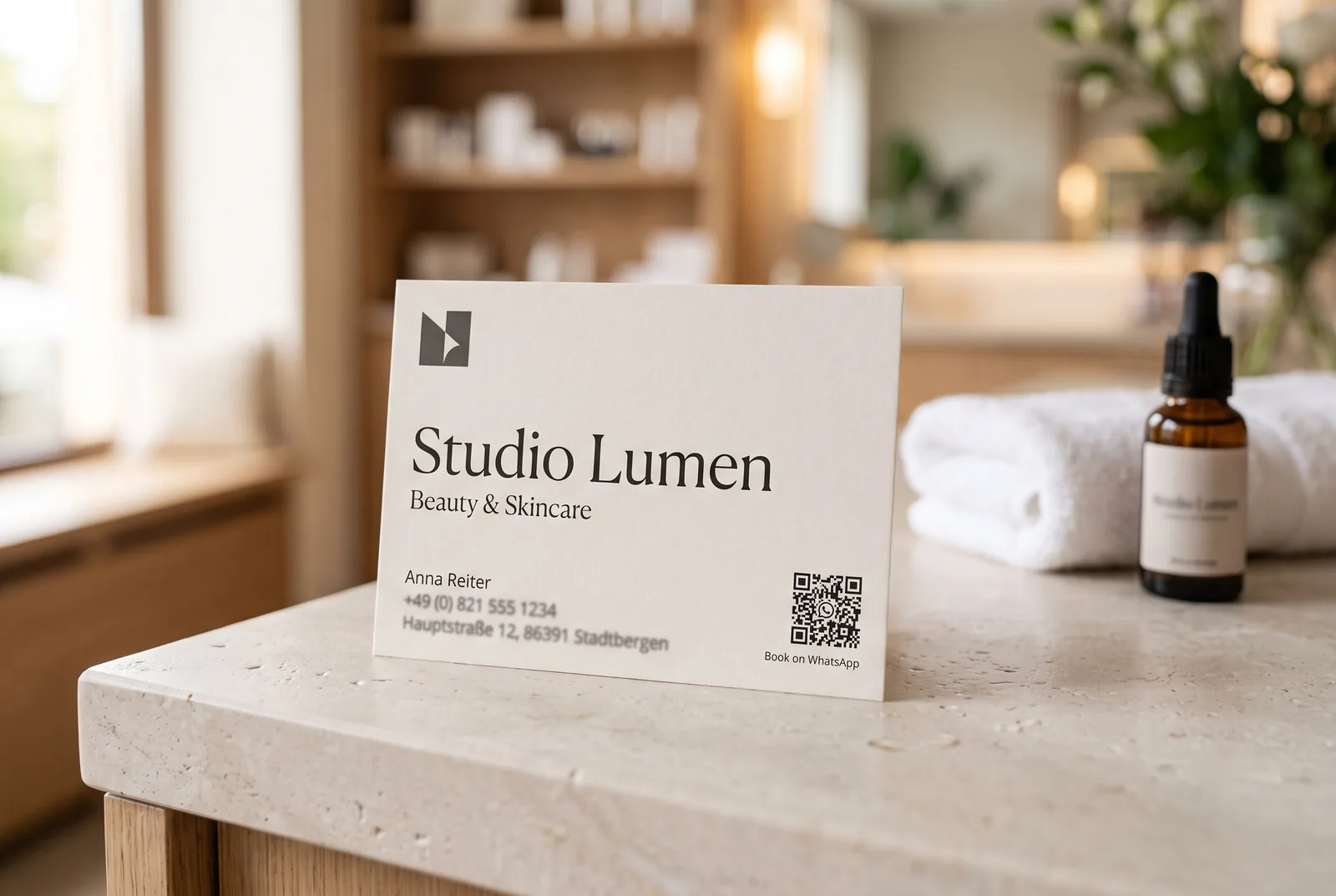
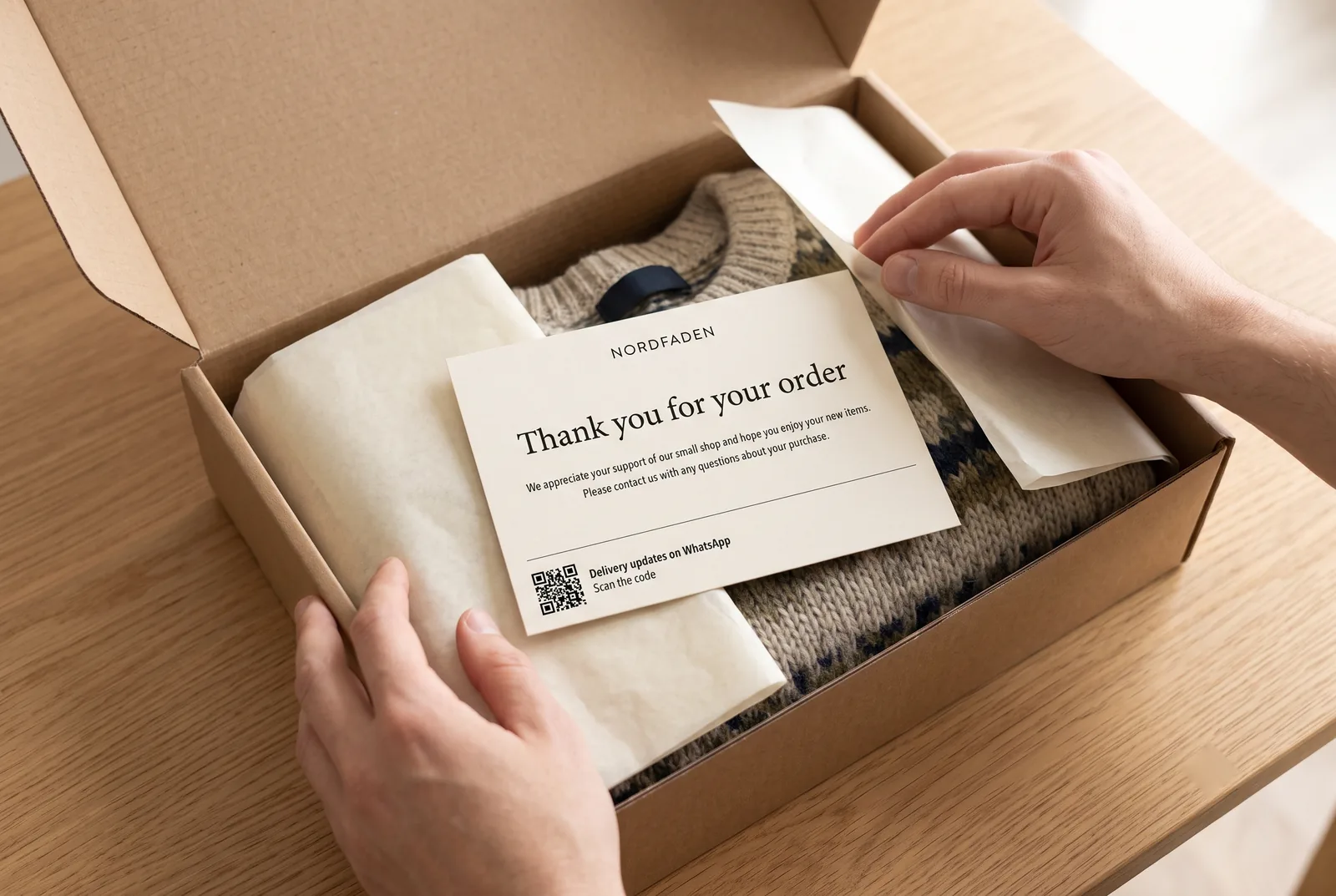
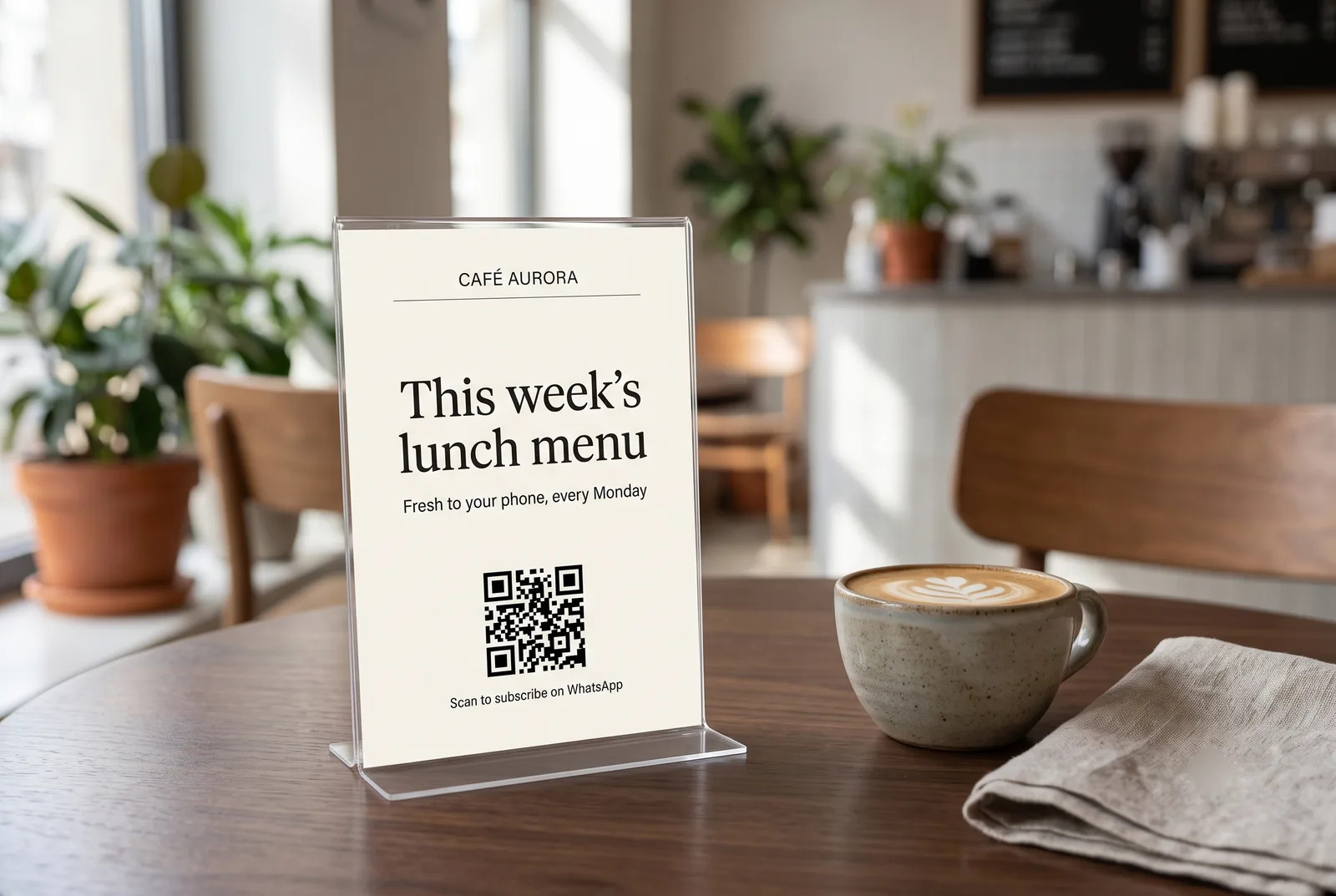
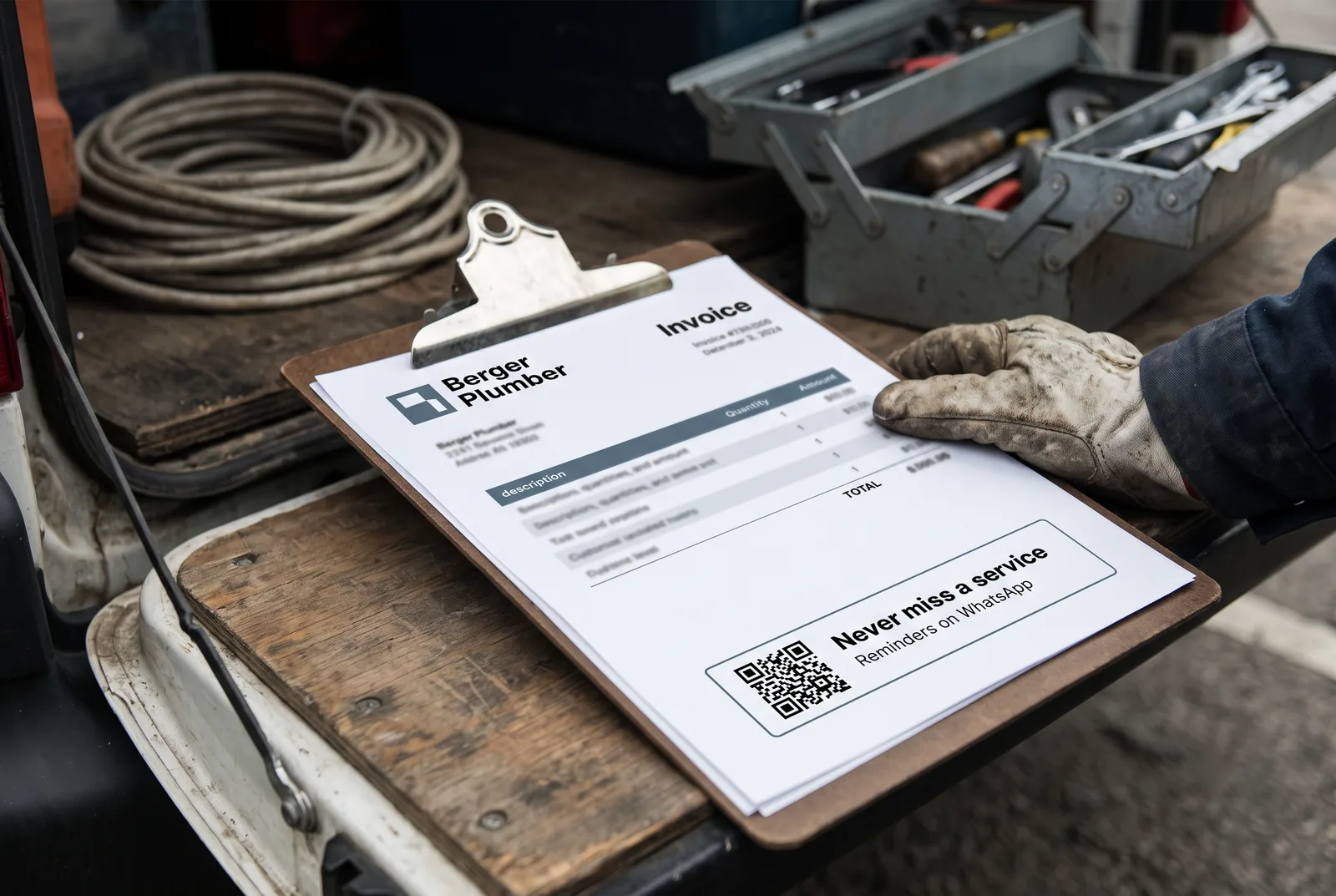
Which spot needs which sentence, how big the code has to be at a given distance and the four mistakes that make it unreadable are covered in detail in our article on WhatsApp QR code placement.
You do not have to build the codes and the print material yourself. In SendSeven they sit under Widgets in the Promotion tab, separated by channel: the direct link, the opt-in link, the QR code as PNG or SVG and four ready-made promo images in square, story, banner and print format.
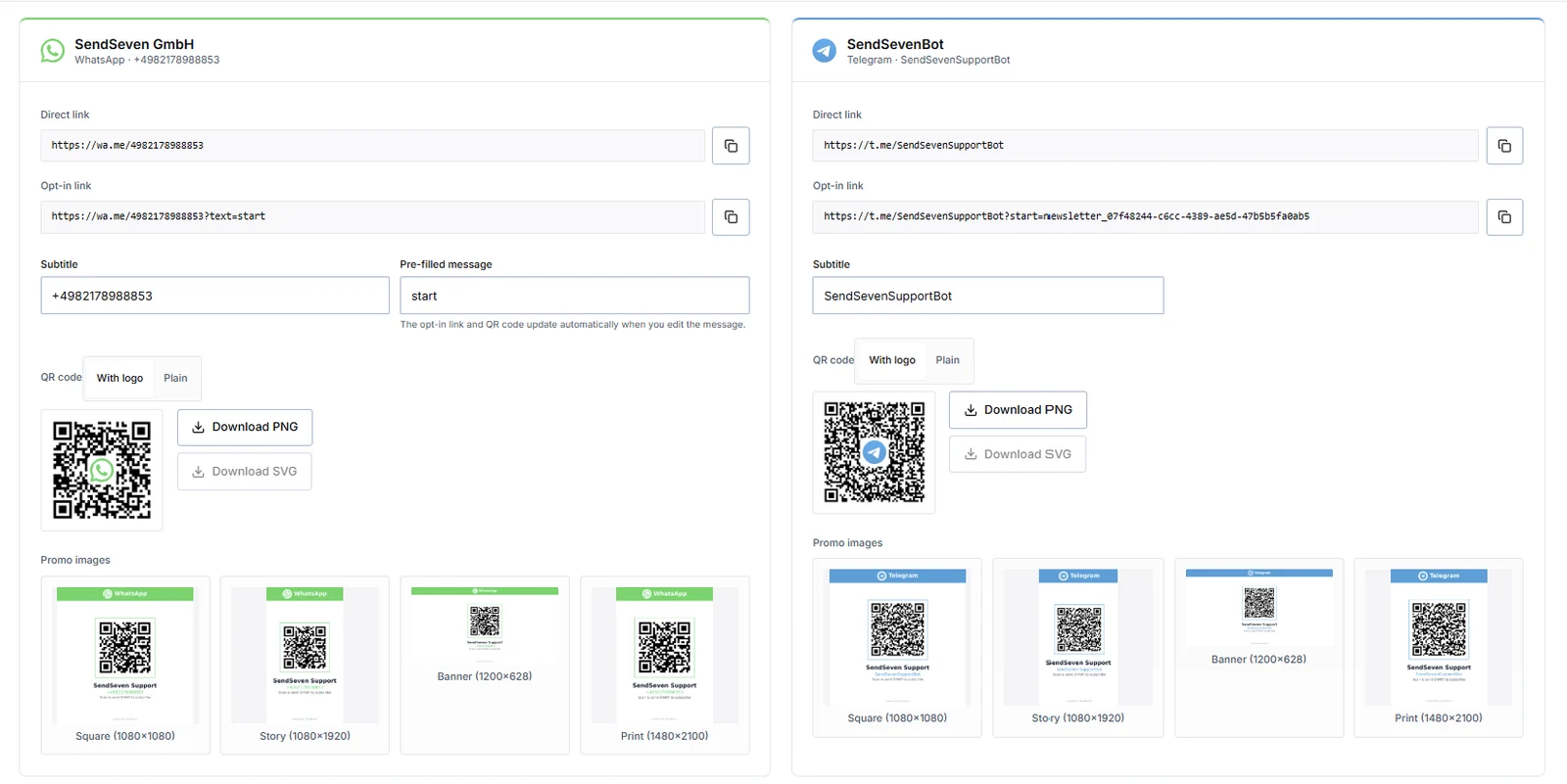
One field in there deserves particular attention: the pre-filled message. It determines which word the customer sends after scanning. The link and the QR code update automatically as soon as you change it. Why that is more than a detail comes up below, under trigger words.
Strategy 3: Click-to-WhatsApp on social media
Your Instagram followers scroll through the feed. Your Facebook post shows up. That's exactly the moment to seize. A Click-to-WhatsApp link in your Instagram bio. A button below your Facebook post. A story with a swipe-up to your WhatsApp channel.
The psychological advantage: the user leaves the social media app and lands in WhatsApp. A familiar place. No unfamiliar form. No new app. WhatsApp is already on the phone. That frictionlessness makes the difference.
Make the CTA specific. Not "Message us on WhatsApp". Better: "Exclusive 15% code, WhatsApp only. Tap here." Or: "The 3 best recipes of the week, straight to your phone. Sign up now."
If you run Meta Ads, you can choose a WhatsApp CTA as the campaign objective directly. Every click on the ad opens a WhatsApp chat with your number. Click-to-WhatsApp Ads like these often win subscribers more cheaply than classic landing-page campaigns. Our complete guide to Click-to-WhatsApp Ads shows the full path from ad click to subscriber, and our CTWA cost guide breaks down the exact cost per lead.
Launch your WhatsApp newsletter
From setup to your first campaign. See everything the WhatsApp Newsletter can do.
Explore WhatsApp Newsletter →Strategy 4: Activate your existing email list
You already have the subscribers. Now show them the better channel.
Send your email list a targeted campaign with the subject line: "Now on WhatsApp too. With a welcome discount." Briefly explain what the WhatsApp channel offers. And link straight to your WhatsApp opt-in page.
The trick: offer something exclusive. Something available only on WhatsApp. Early access to new products. A flash sale that starts 2 hours before the email newsletter. Or personal advice by chat.
Don't expect a 100% migration rate. 8 to 15% of your email subscribers will switch to WhatsApp. That sounds small. But those 8 to 15% are your most active contacts. The ones who actually open and read your emails. Those are exactly the people you want on your highest-attention channel.
Strategy 5: Opt-in during checkout
The moment after the purchase. The customer has just spent money. Trust is high. So is their willingness to form another connection. This is exactly where your WhatsApp opt-in checkbox belongs.
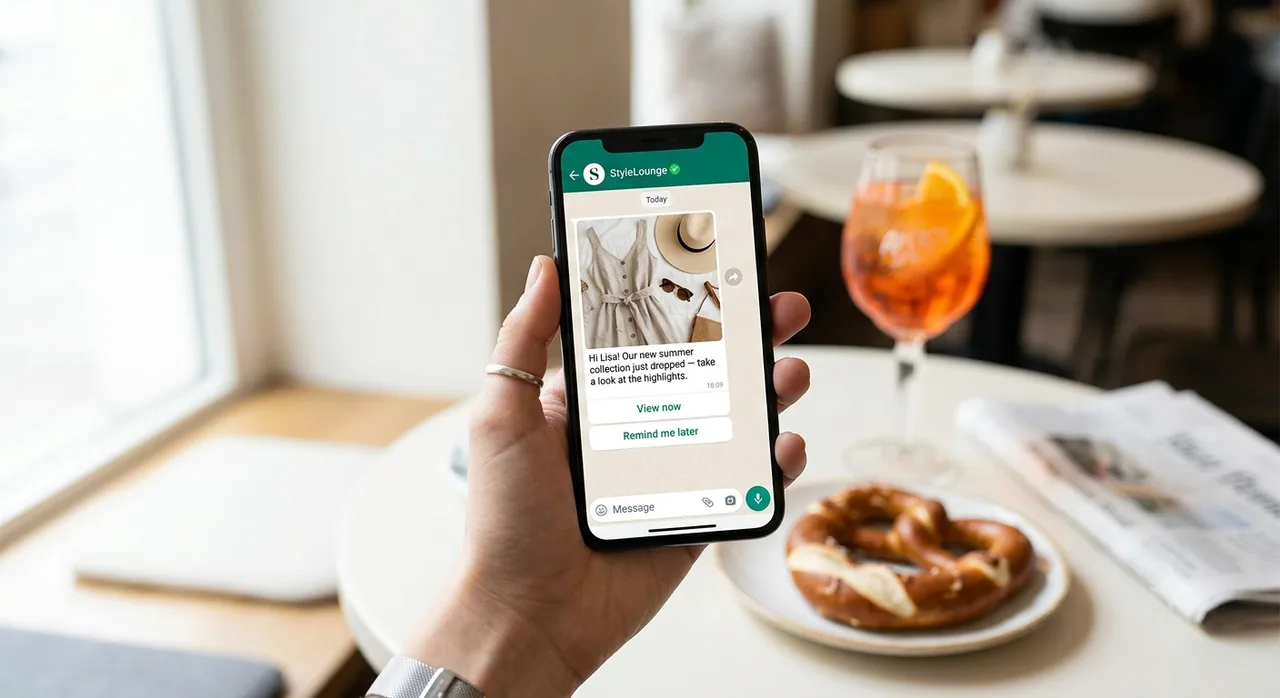
Important: the checkbox must not be pre-ticked. That isn't a recommendation. It's a GDPR requirement. Pre-ticked boxes are invalid. Consent has to be given actively.
Word the text next to the checkbox clearly and honestly. "Yes, I'd like to receive exclusive offers and order updates on WhatsApp. Unsubscribe anytime with STOP." Short. Transparent. Legally sound.
Online shops with a checkout opt-in report conversion rates between 12 and 25%. Those aren't small numbers. At 1,000 orders per month, you gain 120 to 250 new subscribers. With no ad budget.
Strategy 6: Exclusive content as an incentive
People don't hand over their phone number for no reason. They need a concrete incentive. Something they only get on WhatsApp. The concept works like a lead magnet in email marketing. Just faster and more personal.
What works:
- Discount code on sign-up. The classic. 10% off the next purchase. Delivered straight to WhatsApp.
- Early access. A new collection, a new product, a new menu. WhatsApp subscribers find out 24 hours before everyone else.
- VIP content. A weekly tip you can't find anywhere else. A chef shares their recipe of the week. A financial advisor sends a market tip on Monday morning.
- Giveaways. Sign up on WhatsApp. Enter with a keyword message. Simple, fast, high conversion rate.
The key: the offer has to be specific. "Sign up" doesn't work. "Claim the 15% code that's valid for 48 hours only" works.
Strategy 7: Events and trade shows
Trade shows, pop-up stores, customer events. Anywhere people gather in person, you can win subscribers. The QR code at your booth. The tablet at reception. The standee next to the register.
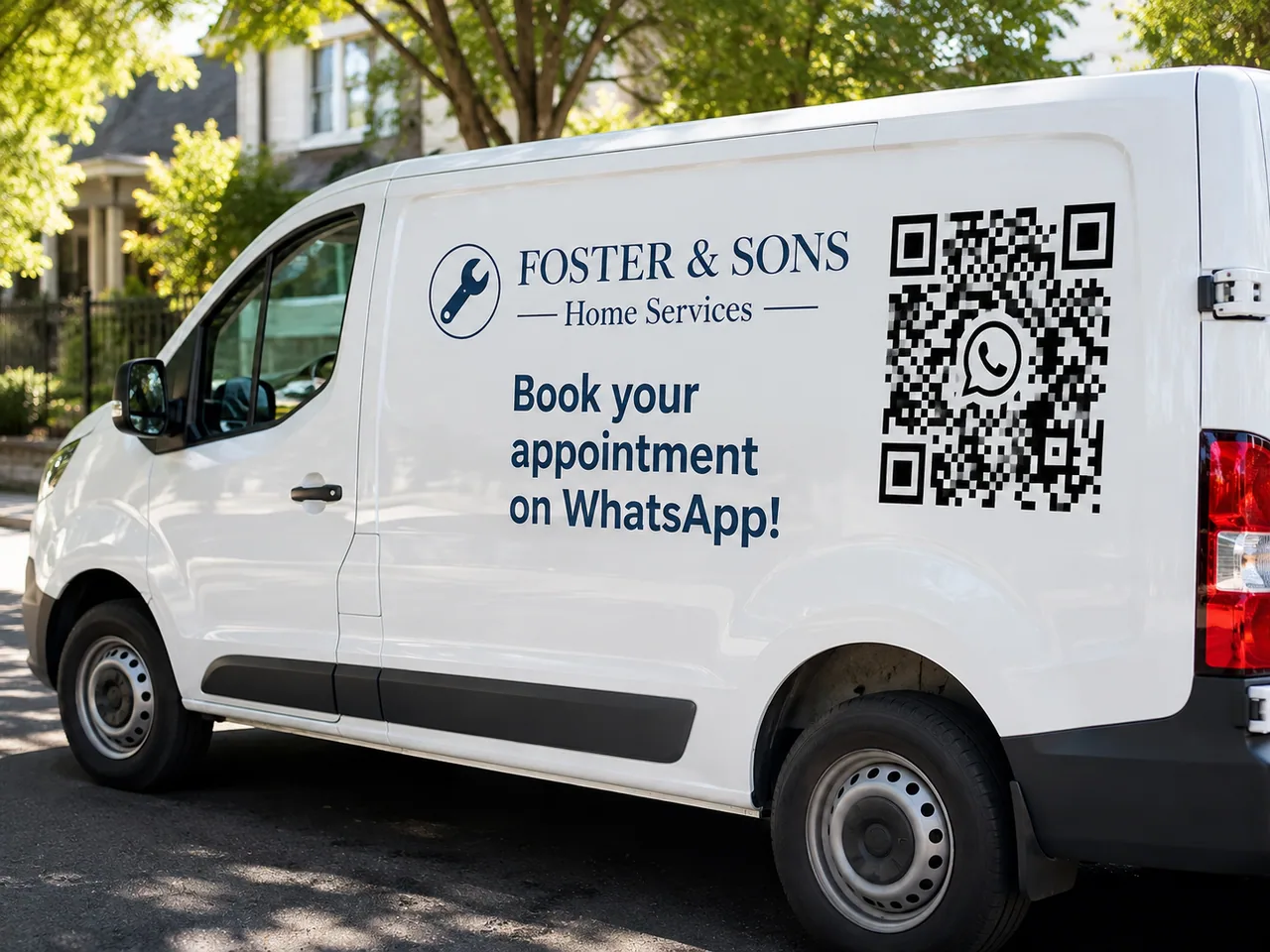
A local trades business solved it creatively. A QR code on the company van. Underneath: "Tips for your home. Every week on WhatsApp." 80 subscribers in two months. No budget. No time spent.
At trade shows, the moment of interaction works especially well. "Scan the code and get our product brochure straight on WhatsApp." The visitor gets instant value. You get a qualified contact.
Combine events with Strategy 6. A giveaway at your booth where entry runs through WhatsApp brings in far more opt-ins than a classic business-card box.
5 touchpoints most small businesses miss
The seven strategies above are the foundation. The five touchpoints that follow cost almost nothing, take half an hour to set up and still usually go unused. Three of them, the email signature, guest WiFi and the Google Business Profile, are covered in depth in our short article on touchpoints without ad budget.
Subscribe buttons on your website, blog and landing pages
A widget is not the only route on your website. Sometimes you just want a button. Under the blog post, in the footer, on a campaign landing page, next to the pricing block.
There is ready-made HTML to copy for exactly that, in three variants: coloured channel buttons with a caption, compact round icon badges for headers and footers, and a table-based block for email. All styles are inline, so you do not need an extra stylesheet.
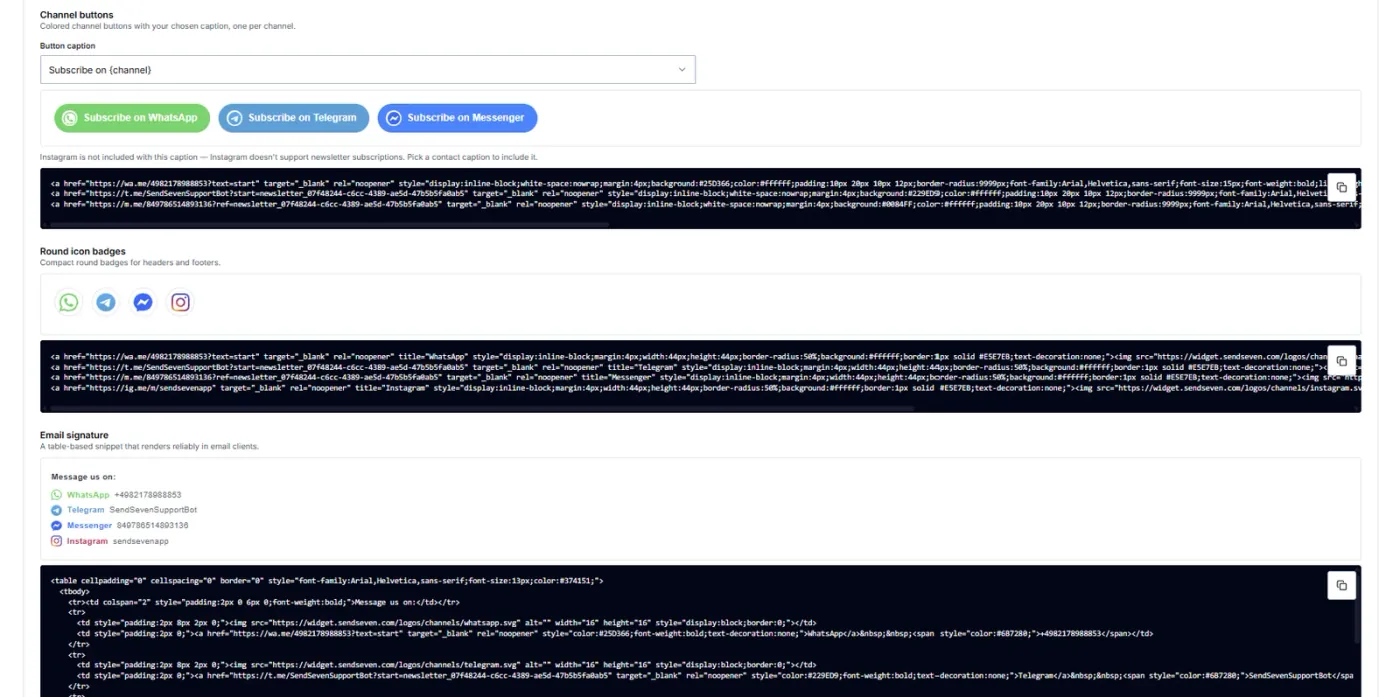
One limitation is stated in the platform itself: with the caption “Subscribe on ...” Instagram drops out, because Instagram does not support newsletter subscriptions. Pick a contact caption there and Instagram is included.
The email signature
Do the maths for a second. How many emails do you and your team send in a week? With three people at 40 emails each that is over 6,000 contact points a year. Every single one ends with your signature.
The signature block is built on a table so it also renders reliably in Outlook. It lists your channels with an icon and the number or username, and every entry links straight into the chat.
Phrase the line above it as an offer, not as a list. “Message us on WhatsApp, we usually reply the same day” works considerably better than a bare number.
Custom trigger words right on the product
This is where it gets interesting. A QR code does not have to land in the same welcome text every time. You can set a separate word per product, per service, per display.
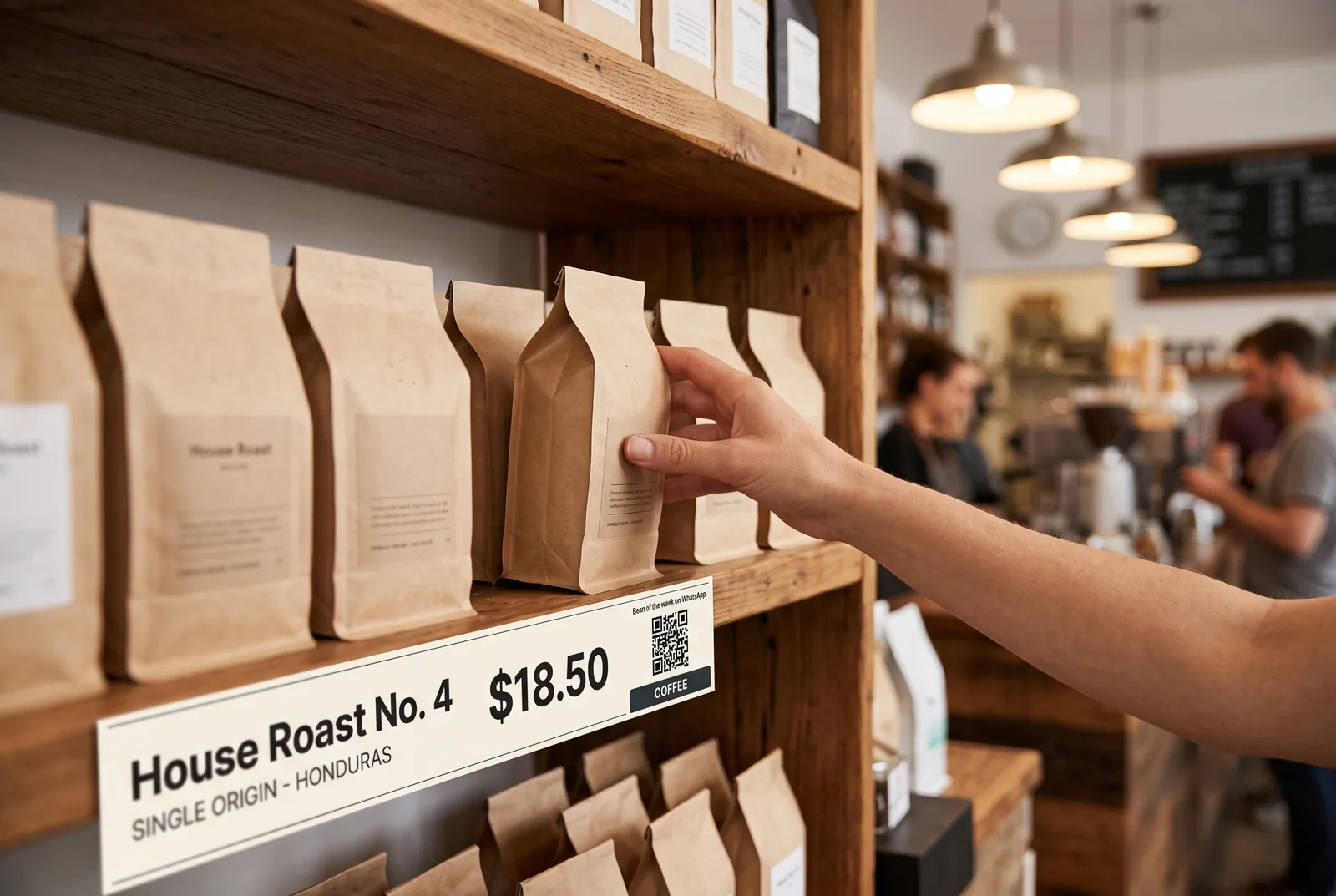
The code on the shelf with the coffee beans sends “coffee”. The display in the salon sends “appointment”. The insert in the parcel sends “warranty”. For the customer it is the same scan. For you they are three different entry points.
Because the word that gets sent is a trigger. A keyword bot recognises it and starts a specific sequence in the Flow Builder. Whoever sends “coffee” gets the bean of the week and lands in the matching list. Whoever sends “appointment” gets open slots. Whoever sends “warranty” is asked for the order number.
None of this needs a shop floor. If you sell digital products or services, put the button right next to the thing itself: beside the plan, under the service description, on the booking page. The trigger word then carries the context with it. A tap on “Question about this plan” arrives at your end already knowing which plan is meant.
The effect is twofold. You answer the open question in the moment of hesitation, which is exactly where the sale would otherwise stall. And because the same message carries the opt-in, you keep the contact for the newsletter afterwards without a second form.
That turns an opt-in into a qualified opt-in. You do not just know that someone signed up, you know what they are interested in. It pays off with the first newsletter, because you can segment instead of sending everyone the same thing. How to choose the words, make every spot measurable with them and where they do not reach is covered in our article on trigger words on the product.
Guest WiFi with a login page
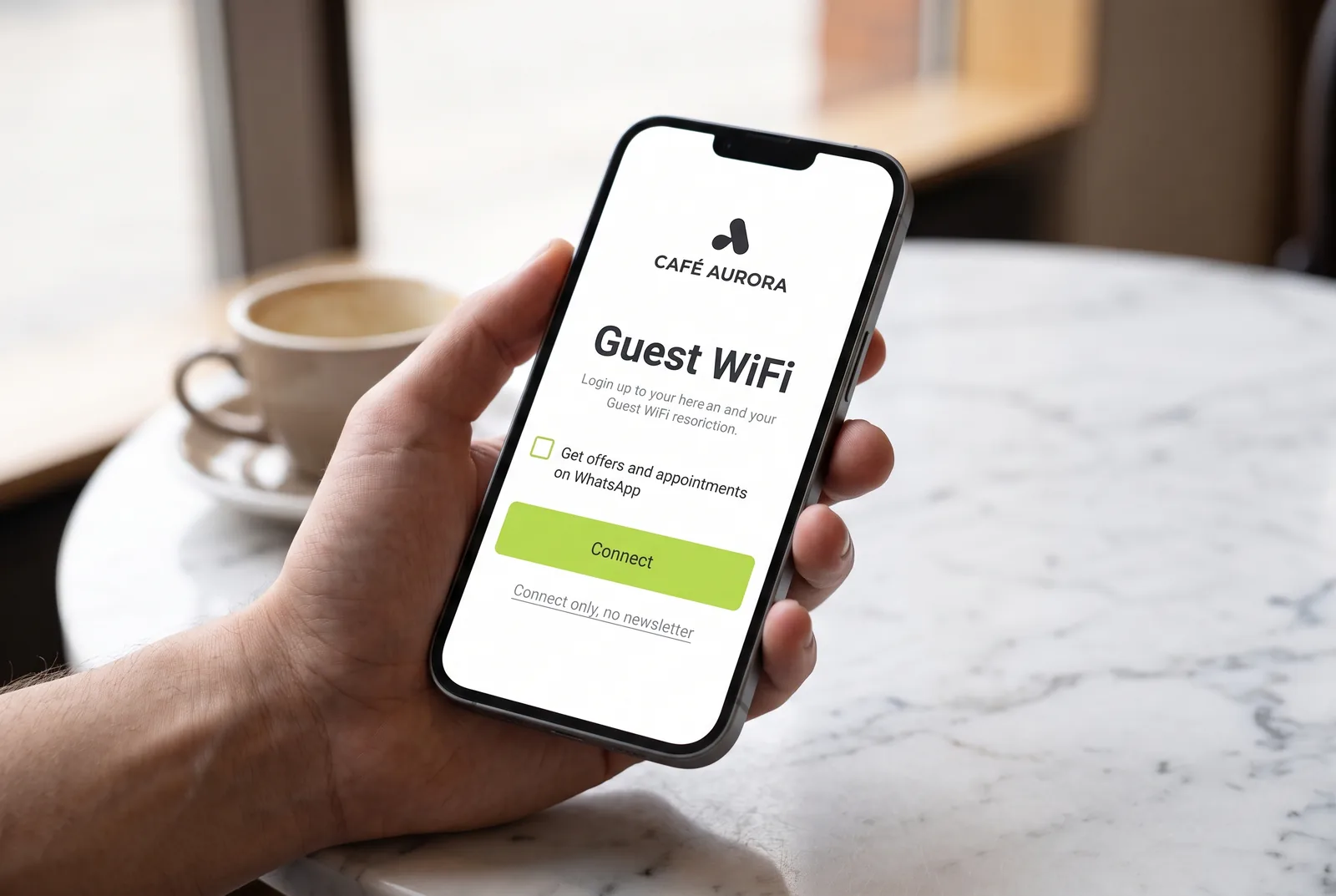
Café, hair salon, beauty studio, waiting area. Everywhere customers sit and wait, they ask for the WiFi. The login page of that guest WiFi is an opt-in surface you already own.
One sentence is enough: “Offers and appointments on WhatsApp? Sign up here.” With the link or the QR code below it.
One legal point is decisive here. You must not make WiFi access conditional on someone subscribing to the newsletter. “Connect only” has to stay visible as its own option. Consent you have to give in order to get online is not freely given and is therefore invalid. Keep the two separate and the touchpoint is unproblematic.
The Google Business Profile
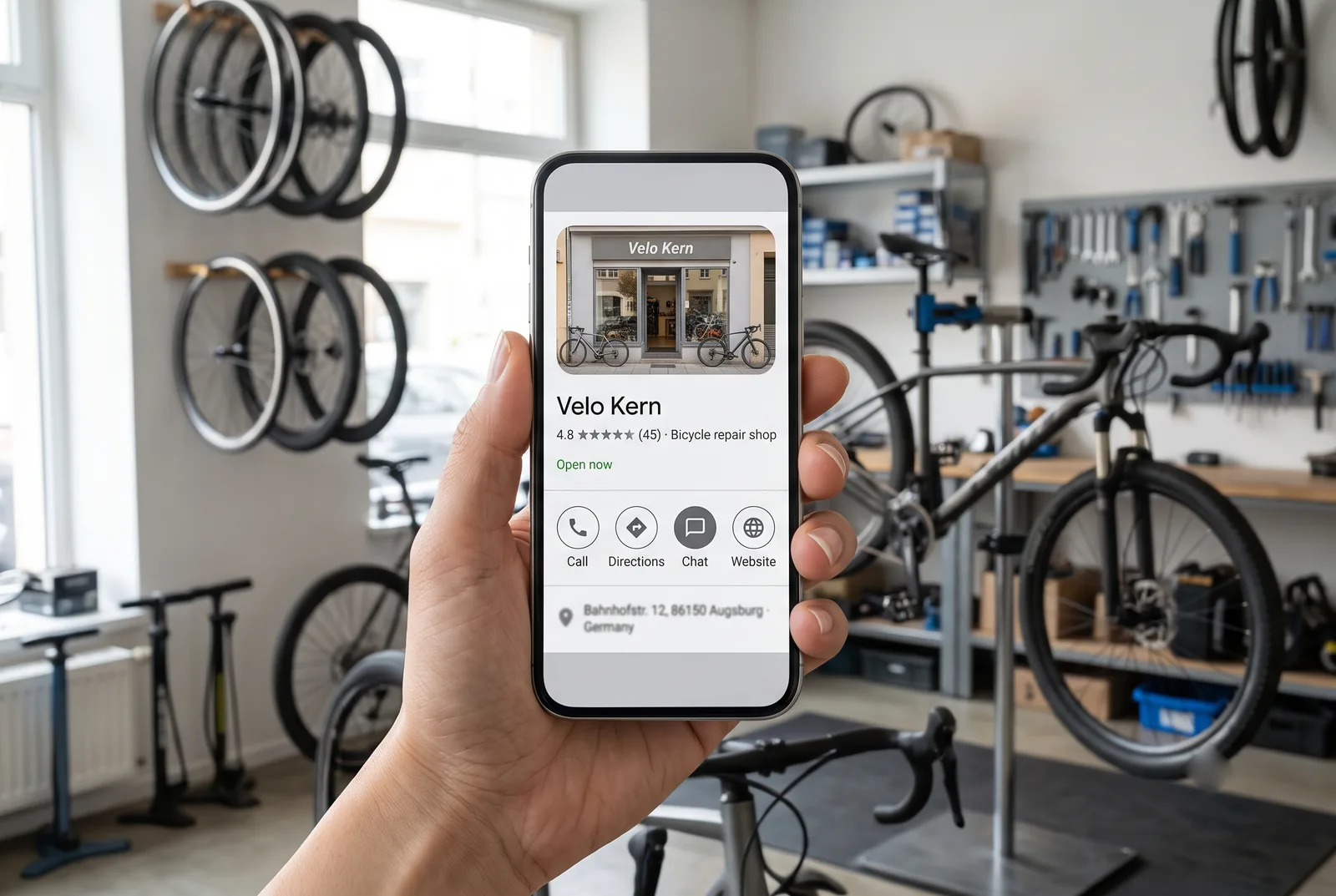
The most underrated touchpoint for local businesses. You can add WhatsApp to your Google Business Profile as a contact button. Free of charge. The profile has to be verified.
Two quirks are worth knowing beforehand. The button only shows on mobile, so you will not see it on a desktop. And you cannot pass a pre-filled text along with it, unlike a link or QR code from the platform.
That is where the actual work starts. This route does not deliver a finished sign-up, it delivers an open question. Because the customer writes first, the 24-hour window is open and you may reply freely. That reply is where you collect the opt-in. What the greeting should look like is covered in our article on touchpoints without ad budget.
From 0 to 500 subscribers: a realistic 90-day plan
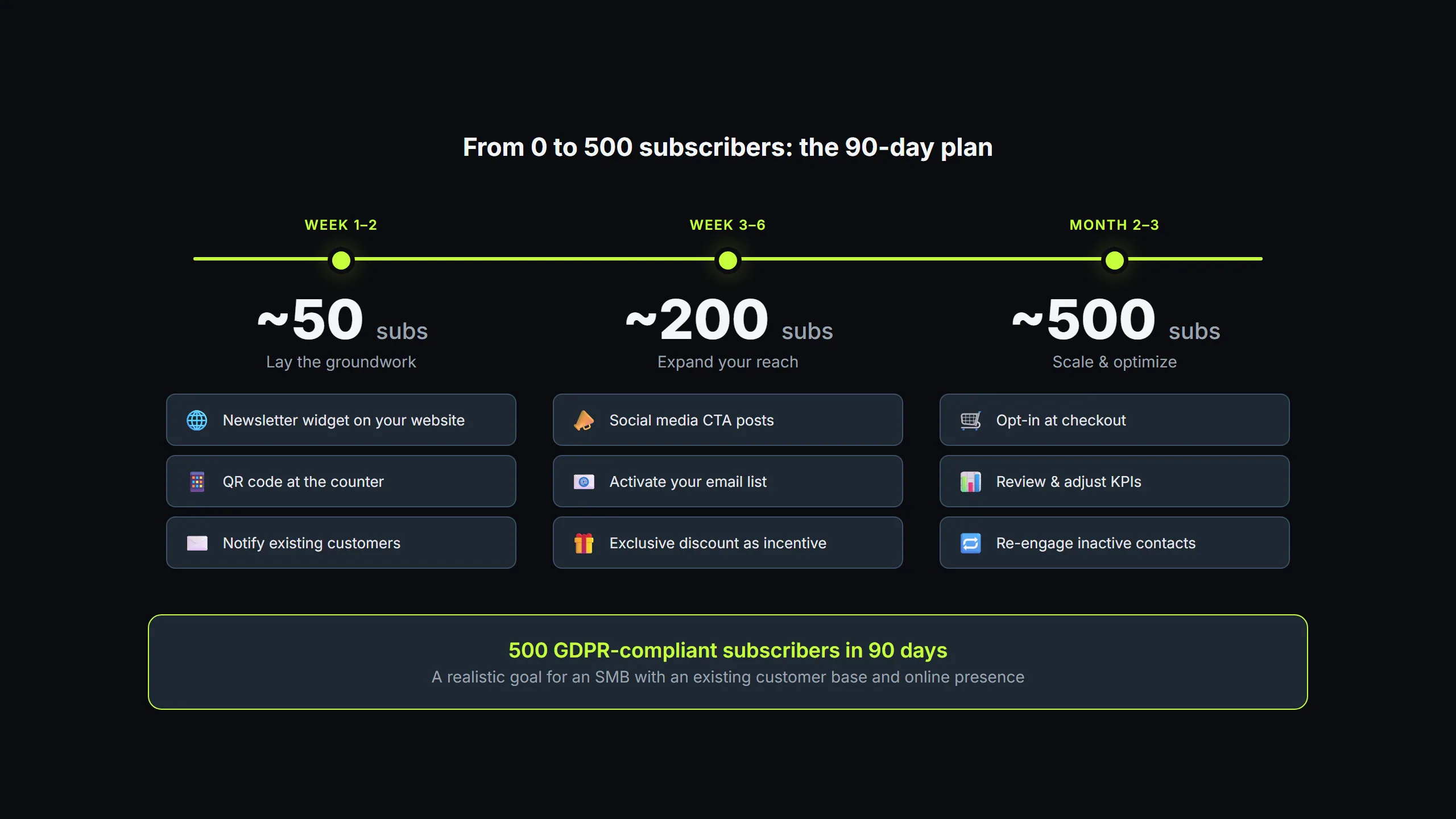
No business builds a large WhatsApp list overnight. But with a structured plan, 500 subscribers in 90 days is realistic for a typical small business. Here's the roadmap.
Weeks 1–2: Lay the foundation
- Set up the newsletter widget. Place it on your website. Homepage, blog articles, thank-you page. (Instructions here)
- Create a QR code. Generate a branded QR code with the WhatsApp Link Generator. Place it at the point of sale.
- Set up a welcome message. An automatic greeting with confirmation and a first bit of value (discount code, tip, product info).
- Expected result: 30 to 50 subscribers
- Extend the email signature. Roll the signature block out to everyone on the team. Ten minutes of work, then it runs by itself.
- Complete the Google Business Profile. Add WhatsApp in the “Chat” field, if it is available in your region.
Weeks 3–4: Activate your reach
- Social media. Add a Click-to-WhatsApp link to your Instagram bio and Facebook page. Publish a first post pointing to your WhatsApp channel.
- Email migration. Send a targeted email to your existing list with a WhatsApp opt-in invitation.
- Expected result: 80 to 120 subscribers (cumulative)
Month 2: Checkout and content
- Checkout opt-in. Add a checkbox to the order process (if you have an online shop).
- First newsletter campaign. Prove the value. A good first newsletter earns referrals.
- Social media, regularly. A post every 2 weeks pointing to your WhatsApp channel.
- Expected result: 200 to 300 subscribers (cumulative)
Month 3: Optimize and scale
- Analyze your content. Which newsletters get read the most? Which CTAs convert? Do more of that.
- Test incentives. A/B test: 10% discount vs. early access. Which incentive brings in more opt-ins?
- Use an event. If a trade show, customer event, or pop-up is coming up: deploy a QR code and a giveaway.
- Expected result: 400 to 550 subscribers (cumulative)
These numbers are based on real-world experience. A business with 500 monthly website visitors, a local store with walk-in traffic, and an email list of 2,000 contacts can hit these targets. With no ad budget.
You'll find more on setup, templates, and your first campaign on our WhatsApp Newsletter page.
Ready for your WhatsApp newsletter?
SendSeven gives you everything you need: a newsletter widget, contact management, a campaign editor, and GDPR-compliant opt-in flows. Start with a free trial.
See pricing →5 opt-in mistakes that cost you subscribers
We see these mistakes regularly. They don't just cost you subscribers. They can put your entire WhatsApp number at risk.
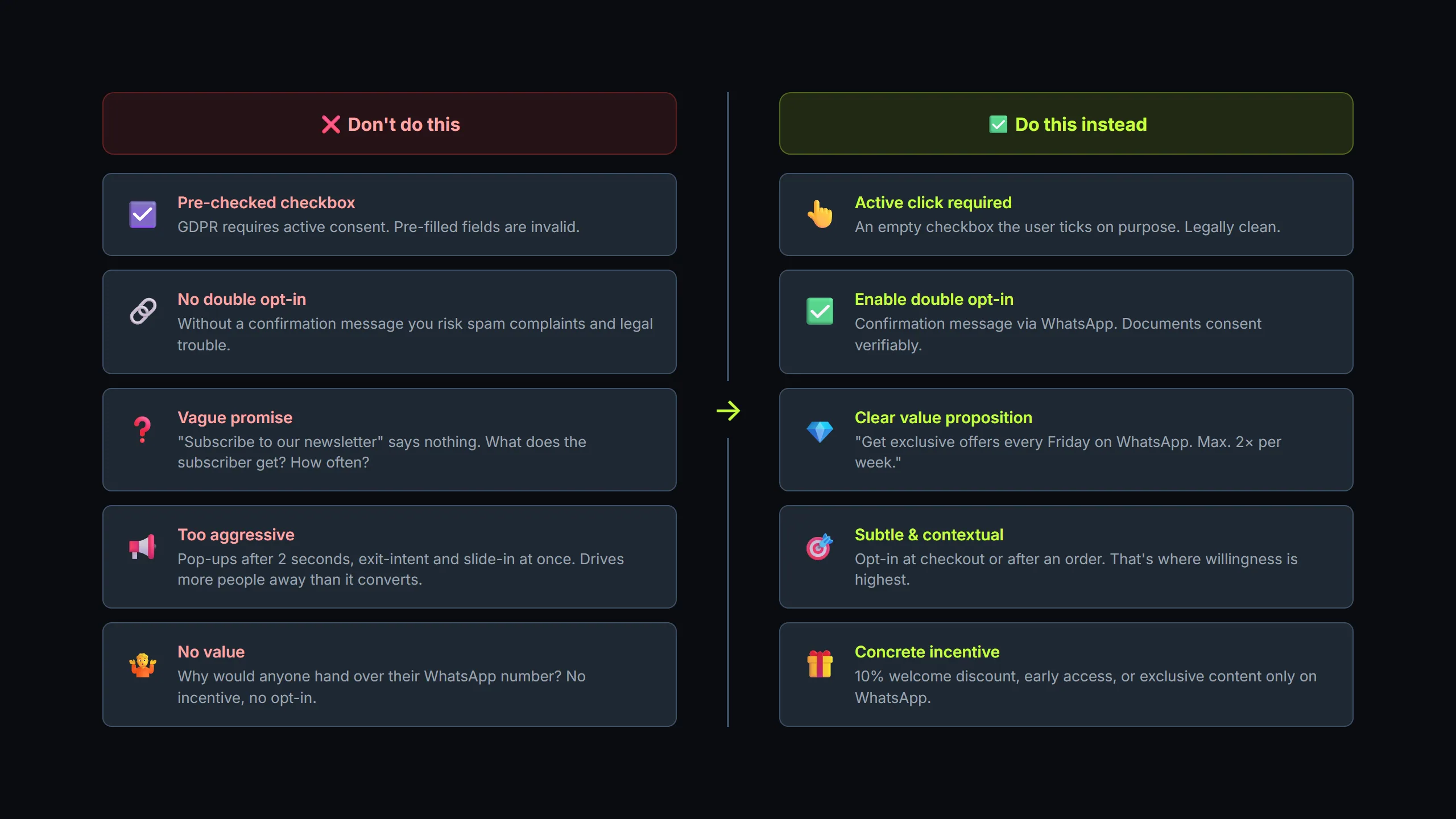
Mistake 1: Pre-ticked checkboxes
Sounds like a quick route to more sign-ups. But it violates GDPR and leads to subscribers who never consented. The consequence: blocks, complaints, a falling quality rating at Meta. In the worst case, a cease-and-desist letter.
Mistake 2: No confirmation message
The user signs up and hears nothing for days. Until the first newsletter arrives and they wonder: "What's this?" An immediate welcome message confirms the sign-up and sets expectations. What's coming? How often? How do you unsubscribe?
Mistake 3: Unclear benefit
"Subscribe to our WhatsApp channel" says nothing. What do I get? How often? Why should I hand over my phone number? Every opt-in placement needs a clear answer to the question: "What's in it for me?"
Mistake 4: Opt-in that's too aggressive
Pop-ups that appear the instant the page loads. Three different newsletter prompts on one page. A countdown timer that piles on pressure. All of it triggers resistance. Better: a subtle widget in the right place, with a concrete offer.
Mistake 5: No value after sign-up
The subscriber signs up and the first newsletter arrives three weeks later. Or worse: they get nothing but ads. No tip, no exclusive content, no discount. Just "Buy now". The unsubscribe follows right away. Plan your first three newsletters before you launch the opt-in.
Take the opt-in checklist with you
All 12 touchpoints, the legal points and the 90-day plan on two pages. To print and tick off, no sign-up needed.
Download the checklist as PDF →Frequently asked questions (FAQ)
Is a double opt-in mandatory for WhatsApp newsletters?
No, a double opt-in isn't legally required. But it's strongly recommended. If a dispute arises, you can prove consent without any gaps. A confirmation message on WhatsApp is enough as the second step.
How much does a WhatsApp newsletter cost?
WhatsApp uses a per-message pricing model. Marketing message rates vary by country, and Meta revises them quarterly, so exact prices depend on where your subscribers are. Since 1 October 2026, Meta also charges service messages (replies within 24 hours) per message, at the utility rate. The first 1,000 service messages per business phone number and month stay free. Our article on the 2026 WhatsApp pricing changes explains what has changed. For details on our platform pricing, see our pricing page.
Can I just import my email list into WhatsApp?
No. You need a separate WhatsApp opt-in for every contact. Consent for email marketing doesn't automatically apply to WhatsApp. But you can invite your email subscribers to sign up for WhatsApp too (Strategy 4).
Do I need the WhatsApp Business API for newsletters?
Yes. The regular WhatsApp Business app only allows broadcast lists of up to 256 contacts and no automated messages. For professional newsletters with more than 256 recipients, automation, and GDPR-compliant documentation, you need the WhatsApp Business API.
How fast can I build a subscriber list?
It depends on your existing reach. A small business with a local store, a website, and an email list can realistically reach 500 subscribers in 90 days. See our 90-day plan above.
What happens if my WhatsApp quality rating drops?
Meta rates your sender number based on how recipients react. If many recipients block your messages or report them as spam, the rating drops. The result: limited sending capacity or a temporary ban. Good opt-in prevents that.
What information do I have to provide at opt-in?
You have to inform the user about: who is sending the messages (your company), what kind of messages they'll receive (offers, information, order updates), how often the messages come, and how they can unsubscribe. This transparency is a GDPR requirement.
Can I use WhatsApp opt-ins for other channels too?
No. Consent applies only to the channel it was given for. If you also want to communicate by SMS, email, or Telegram, you need separate consent for each. SendSeven supports all eight channels in one platform: WhatsApp, SMS, email, Instagram, Messenger, Live Chat, Telegram, and Browser Push.
Can I use a separate trigger word per product?
Yes. In the promotion tools you set, per link and per QR code, which word the customer sends after scanning. A keyword bot recognises that word and starts a specific sequence in the Flow Builder. That way the code on the coffee shelf runs into a different welcome sequence than the display at the till.
What do the QR codes and promo images cost?
Nothing on top. The promotion tools sit in SendSeven under Widgets in the Promotion tab and are included in the platform. QR codes come as PNG and SVG, the promo images in square, story, banner and print format. To create a QR code without an account, use our WhatsApp Link Generator.
May I tie guest WiFi access to the newsletter opt-in?
No. Consent has to be freely given. If WiFi access only works with a newsletter sign-up, the consent is invalid. Offer “connect only” as its own visible option and put the opt-in next to it as a separate choice. Then the login page is a completely unproblematic touchpoint.
How do I get WhatsApp into my Google Business Profile?
You add WhatsApp to the profile as a contact button. A verified profile is required. The button only shows on mobile, and you cannot pass a pre-filled text along with it. What follows from that is covered in our article on touchpoints without ad budget.
Further reading
- The complete guide to Click-to-WhatsApp Ads (2026)
- What Click-to-WhatsApp Ads cost: cost per lead and ROI
- WhatsApp pricing changes 2026: what Meta has changed
- WhatsApp Newsletter 2026: the full setup guide
- WhatsApp Newsletter (product page)
- Set up the newsletter widget (step by step)
- Free WhatsApp Link & QR code generator
- WhatsApp QR codes: 6 spots where people actually scan
- Subscribers without ad budget: three touchpoints you already own
- Trigger words on the product: from sticker to subscriber
- WhatsApp essentials: the rules before your first send
Note: some illustrations in this article are AI-generated. How we work with AI is set out in our editorial policy.